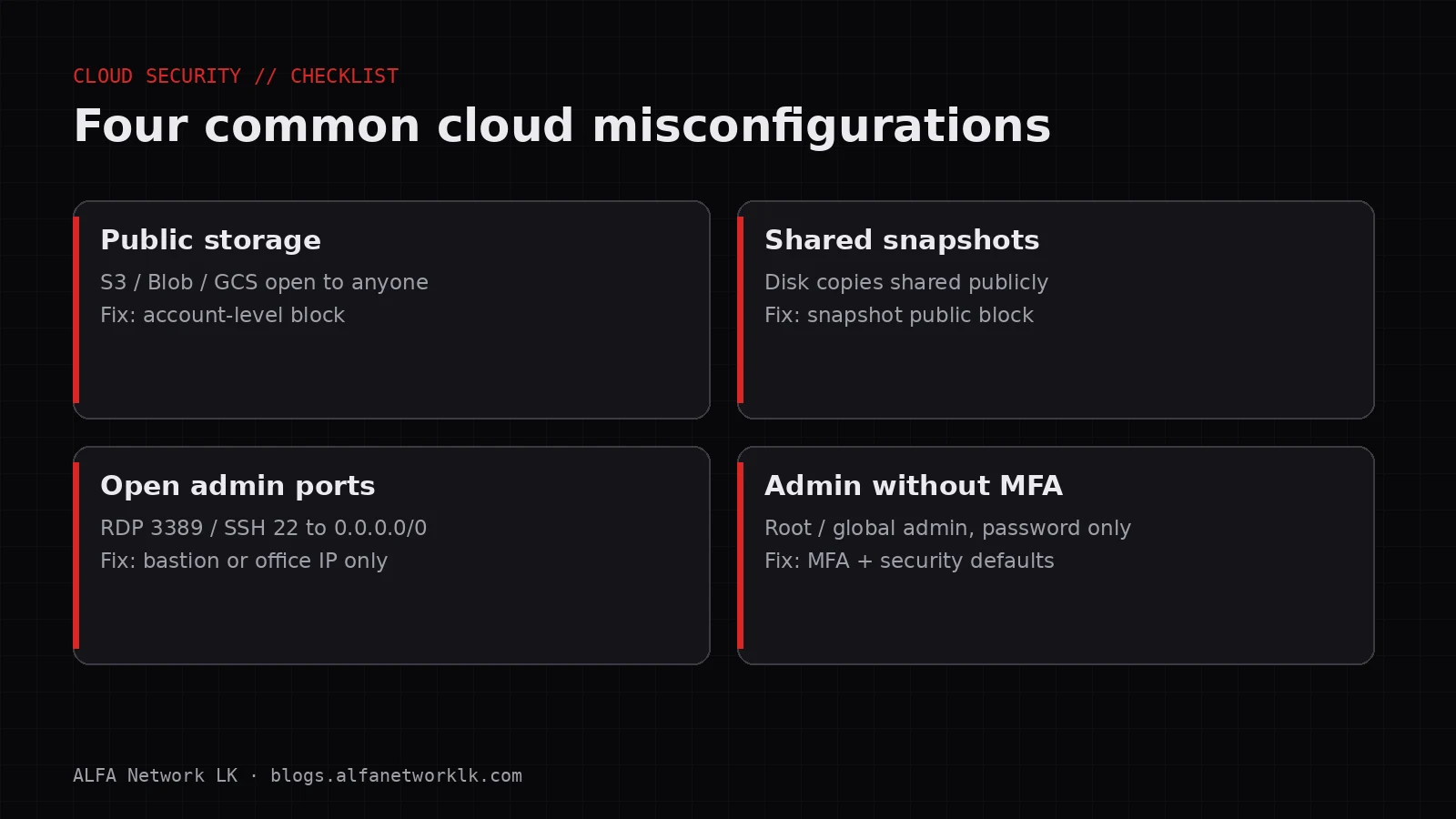
Public buckets, shared snapshots, open RDP and admin accounts without MFA. A practical checklist for AWS, Azure and Google Cloud, written for Sri Lankan companies without a security team.
Most of the cloud problems I get called in for were not clever attacks. Someone made a storage bucket public to share a file "for a day". A test server was left with remote desktop open to the whole internet. The original admin account, created when the company first signed up, still has no MFA and a password that three former staff knew.
None of that needs a zero-day. It needs someone to look.
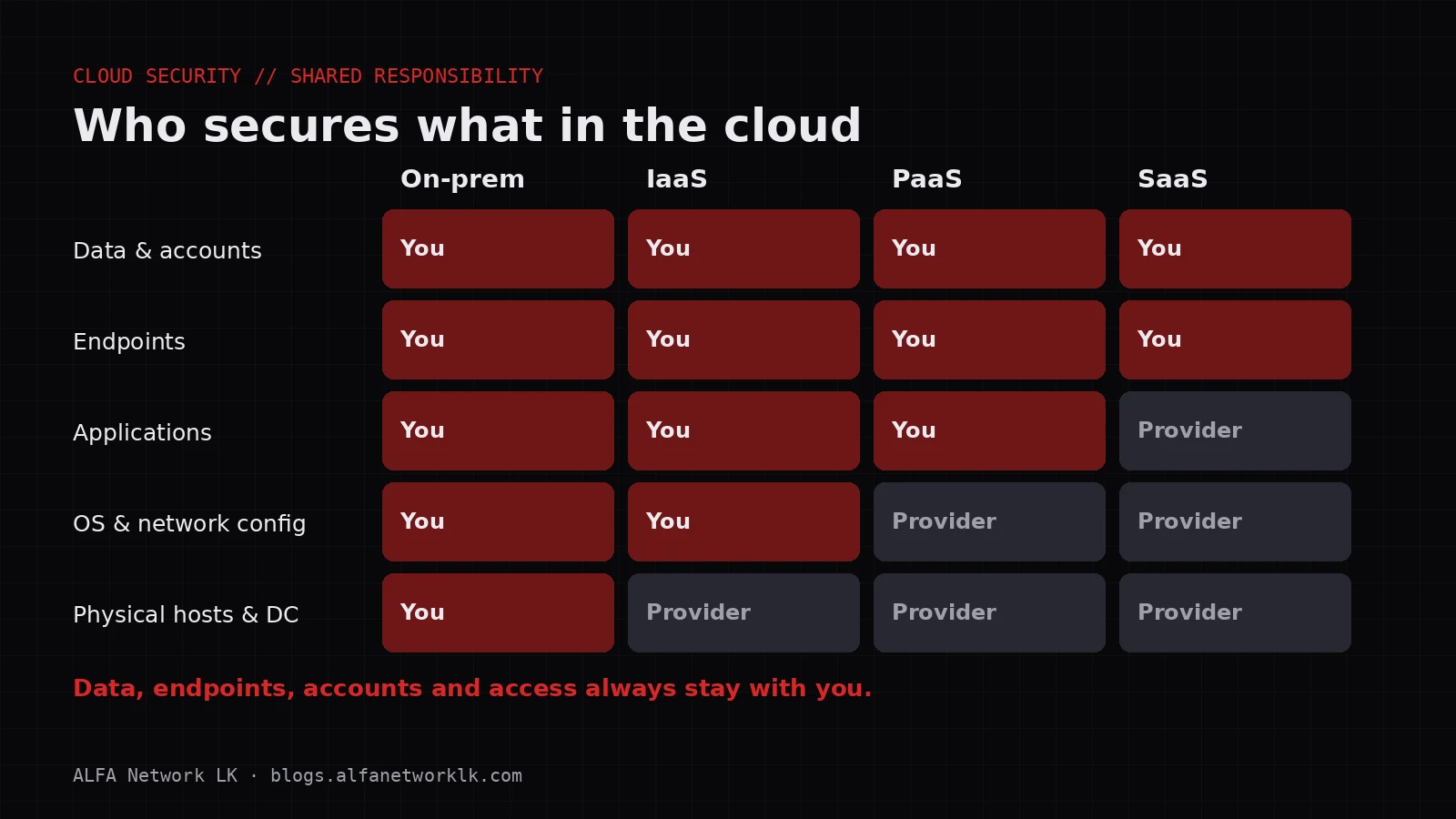
The US National Security Agency put it plainly when it published its Top Ten Cloud Security Mitigation Strategies in March 2024: many cloud breaches come down to misconfigurations in the customer's own tenant. CISA co-authored several of those guidance sheets, and they are worth reading in full. This post is the short, practical version for a Sri Lankan company that runs a few things on AWS, Azure or Google Cloud and does not have a security team.
I have grouped the checks by the mistakes I actually see, roughly in order of how often they turn up.
1. Storage that anyone on the internet can read
Every big cloud has object storage: Amazon S3, Azure Blob Storage, Google Cloud Storage. Companies use it for backups, website images, exported reports, database dumps and sometimes scanned ID cards. If a bucket or container is public, anyone who finds the link can download what is inside, and automated scanners do go looking.
The good news is that all three providers now give you a single switch to stop this, and the safer setting is the default for new resources:
- AWS: S3 Block Public Access. AWS says new buckets, access points and objects don't allow public access by default, but people can still change bucket policies to allow it. Turn Block Public Access on at the account level, not just per bucket, so a later mistake can't undo it.
- Azure: disallow anonymous read access on each storage account. Microsoft's docs explain there are two settings involved: one on the storage account and one on each container. Turning it off at the account level overrides the container settings.
- Google Cloud: public access prevention, which you can enforce per bucket or across the organisation with an organisation policy.
If something genuinely needs to be public, like images for your website, put it in its own bucket that holds nothing else. Never mix "public website files" and "finance exports" in one place.
Check this week: list every bucket or storage account, note which ones allow public access, and write down why. If nobody can explain it, switch it off and see who complains.
2. Disk snapshots and backups shared with the world
This one surprises people. On AWS you can share an EBS snapshot (a copy of a server's disk) publicly. A public snapshot of a database server is effectively a public copy of the database.
AWS added block public access for EBS snapshots, which you enable per Region. In "block all sharing" mode, any snapshot that was already shared publicly is treated as private again. Since the setting is per Region, turn it on in every Region you use, including the one somebody tried "just to test" in 2021.
Similar thinking applies to machine images and database snapshots on any cloud: check who they are shared with.
3. Admin ports open to everyone
Remote desktop (port 3389) and SSH (port 22) open to 0.0.0.0/0 (any address on the internet) are still common, usually on a server that was set up in a hurry. Internet-wide scanning finds these quickly and starts guessing passwords.
What to do instead, in order of preference:
- Don't expose admin access at all. Use the provider's own browser-based or tunnelled access, such as AWS Systems Manager Session Manager, Azure Bastion or Google Cloud's Identity-Aware Proxy.
- If you must expose it, limit the firewall rule (security group or network security group) to your office's fixed IP address.
- Use SSH keys rather than passwords, and turn off password login for SSH.
Databases are the same story. A database should almost never accept connections straight from the internet. It should sit on a private network that only your application servers can reach.
4. The admin account without MFA
The account that controls your cloud is the most valuable account your company has. If someone takes it over, they can delete your servers and your backups in the same afternoon.
- Turn on MFA for every human user who can sign in to the console. Start with admins.
- On AWS, lock away the root user: strong unique password, MFA, and no access keys. Use separate named accounts for daily work.
- On Microsoft Entra ID (the identity system behind Azure and Microsoft 365), if you don't have the premium licences for Conditional Access, turn on security defaults. They are free and require MFA registration for all users, require MFA for admins, and block legacy authentication protocols. Microsoft states that MFA plus blocking legacy authentication stops more than 99.9% of common identity attacks.
- Prefer phishing-resistant methods (passkeys or hardware security keys) for admin accounts where you can.
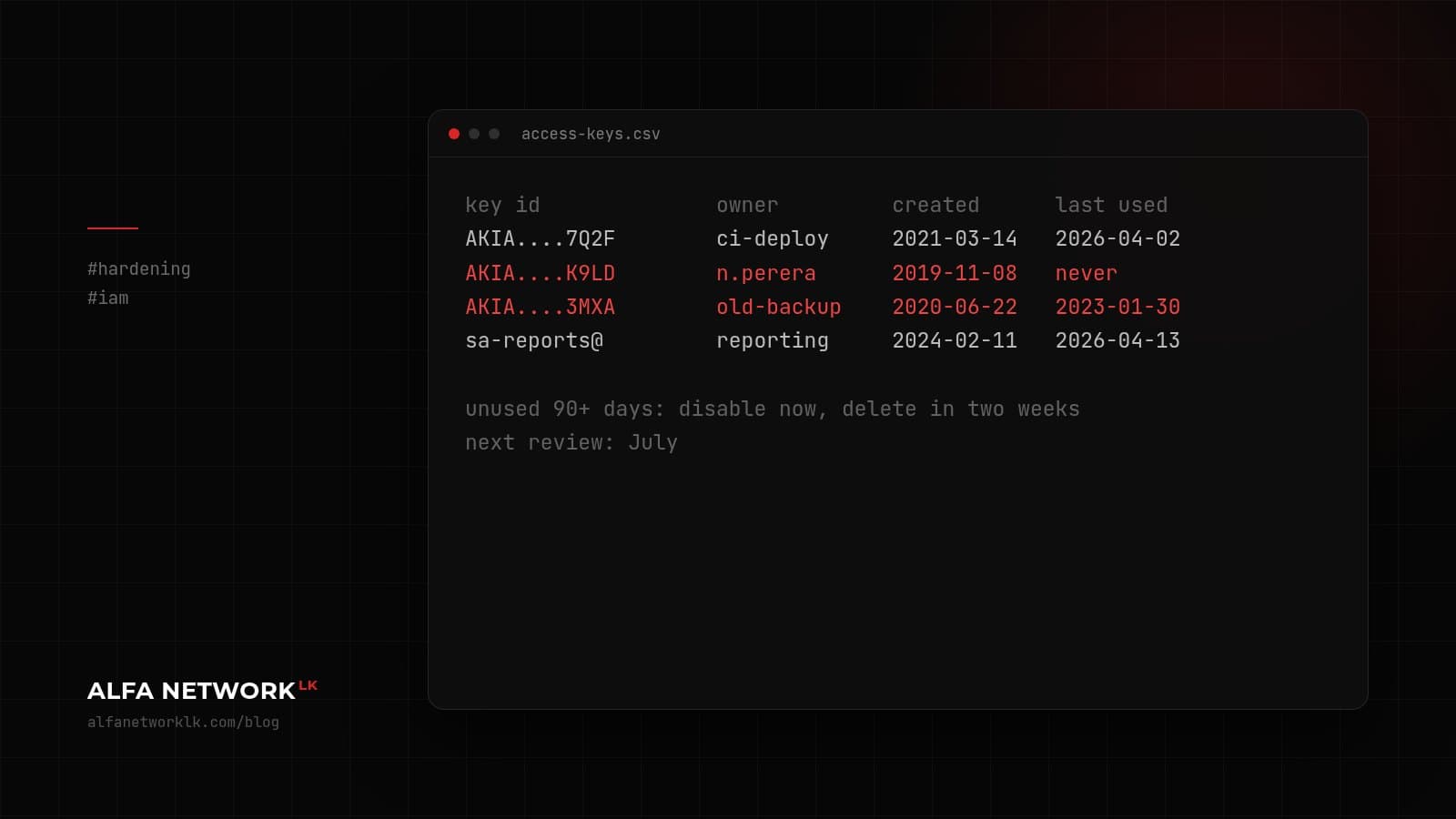
I wrote separately about old access keys that outlive the people who created them. If you haven't reviewed your keys and service accounts recently, do that alongside this.
5. Secrets in the wrong places
Passwords and API keys end up in places they shouldn't: in a .env file committed to a Git repository, in a shared spreadsheet, in a WhatsApp group, inside a server image.
- Search your repositories (including old ones) for keys. GitHub's secret scanning and similar tools help.
- Move secrets into the cloud's secret manager (AWS Secrets Manager, Azure Key Vault, Google Secret Manager) and give applications access through roles, not long-lived keys.
- When a secret has been exposed, assume it's compromised. Rotate it first, then investigate.
6. Nobody is watching
Misconfigurations creep back. A developer opens a port for testing, a new bucket appears, someone shares a snapshot. You need something that checks continuously, not a review once a year.
All three clouds include a posture checker you can turn on:
- AWS Security Hub with the AWS Foundational Security Best Practices standard flags things like public buckets, open security groups and the root user without MFA.
- Microsoft Defender for Cloud gives Azure a secure score and recommendations.
- Google Cloud Security Command Center does the same for Google Cloud.
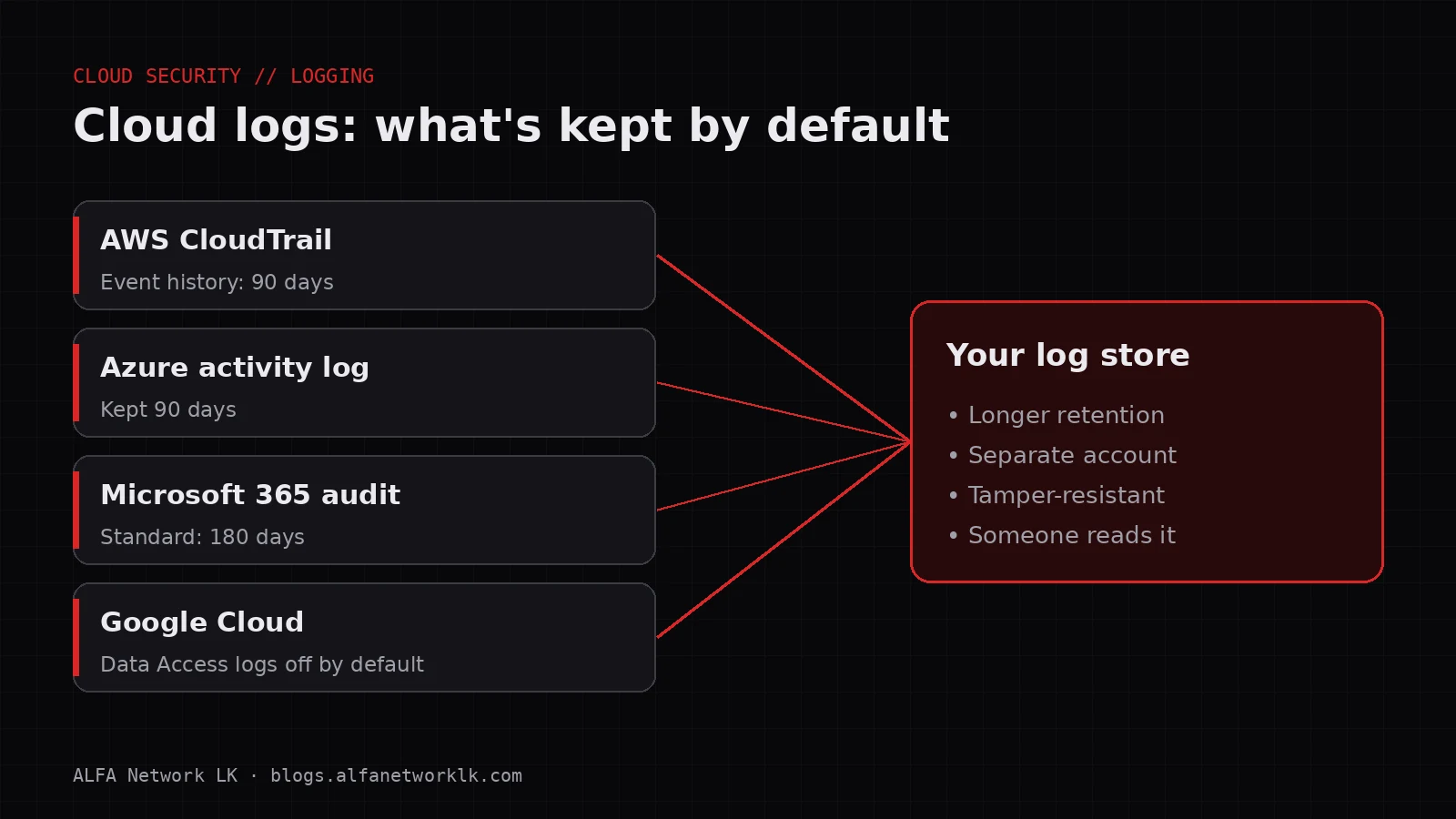
Add threat detection too. Amazon GuardDuty, for example, starts analysing CloudTrail management events, VPC flow logs and DNS logs as soon as you enable it, without extra setup. These tools cost money once you're past any trial period, so check pricing for your usage. For most small environments the bill is modest compared with the cost of an incident.
The part people skip: decide who reads the alerts. A finding that sits in a console nobody opens is the same as no finding.
Where the PDPA fits
If those buckets, databases or backups hold personal data about Sri Lankan customers or staff, the Personal Data Protection Act, No. 9 of 2022 applies to it wherever it's stored, including a cloud region outside Sri Lanka. Keeping that data away from the open internet is the most basic part of looking after it. I'm not a lawyer, so for your specific obligations talk to someone who is, but none of the steps above will be wasted work.
A one-page checklist
Print this, tick it off, and put a date on it.
Storage
- Account-level block on public storage turned on (S3 Block Public Access, Azure anonymous access disallowed, GCS public access prevention enforced)
- Any intentionally public bucket holds only public files, and the reason is written down
Snapshots and images
- EBS snapshot block public access enabled in every Region you use
- Shared images and database snapshots reviewed
Network
- No RDP or SSH open to the whole internet
- Databases not reachable from the internet
Identity
- MFA on every console user, admins first
- AWS root user locked away with MFA and no access keys
- Security defaults or Conditional Access requiring MFA in Microsoft Entra ID
- Keys and service accounts unused for 90 days disabled
Secrets
- Repositories scanned for keys and passwords
- Secrets moved to a secret manager
Monitoring
- Posture checker turned on (Security Hub, Defender for Cloud or Security Command Center)
- Threat detection turned on
- A named person reads the alerts every week
Set a reminder to run through it again in three months. The first pass usually finds a few surprises. The second one tends to be much shorter, and that's the point.
If you'd like a second pair of eyes on your cloud setup, ALFA Network LK does cloud configuration reviews. Contact details are at the bottom of this page.
Sources
- NSA, Top Ten Cloud Security Mitigation Strategies (March 2024)
- CISA, CISA and NSA Release Cybersecurity Information Sheets on Cloud Security Best Practices
- AWS, Blocking public access to your Amazon S3 storage
- AWS, Block public access for EBS snapshots
- AWS, AWS Foundational Security Best Practices standard
- AWS, What is Amazon GuardDuty?
- Microsoft, Prevent anonymous read access to blob data
- Microsoft, Security defaults in Microsoft Entra ID
- Google Cloud, Public access prevention
- Data Protection Authority of Sri Lanka, Personal Data Protection Act No. 9 of 2022
Cover diagram: ALFA Network LK
Comments (0)
No public comments yet.