
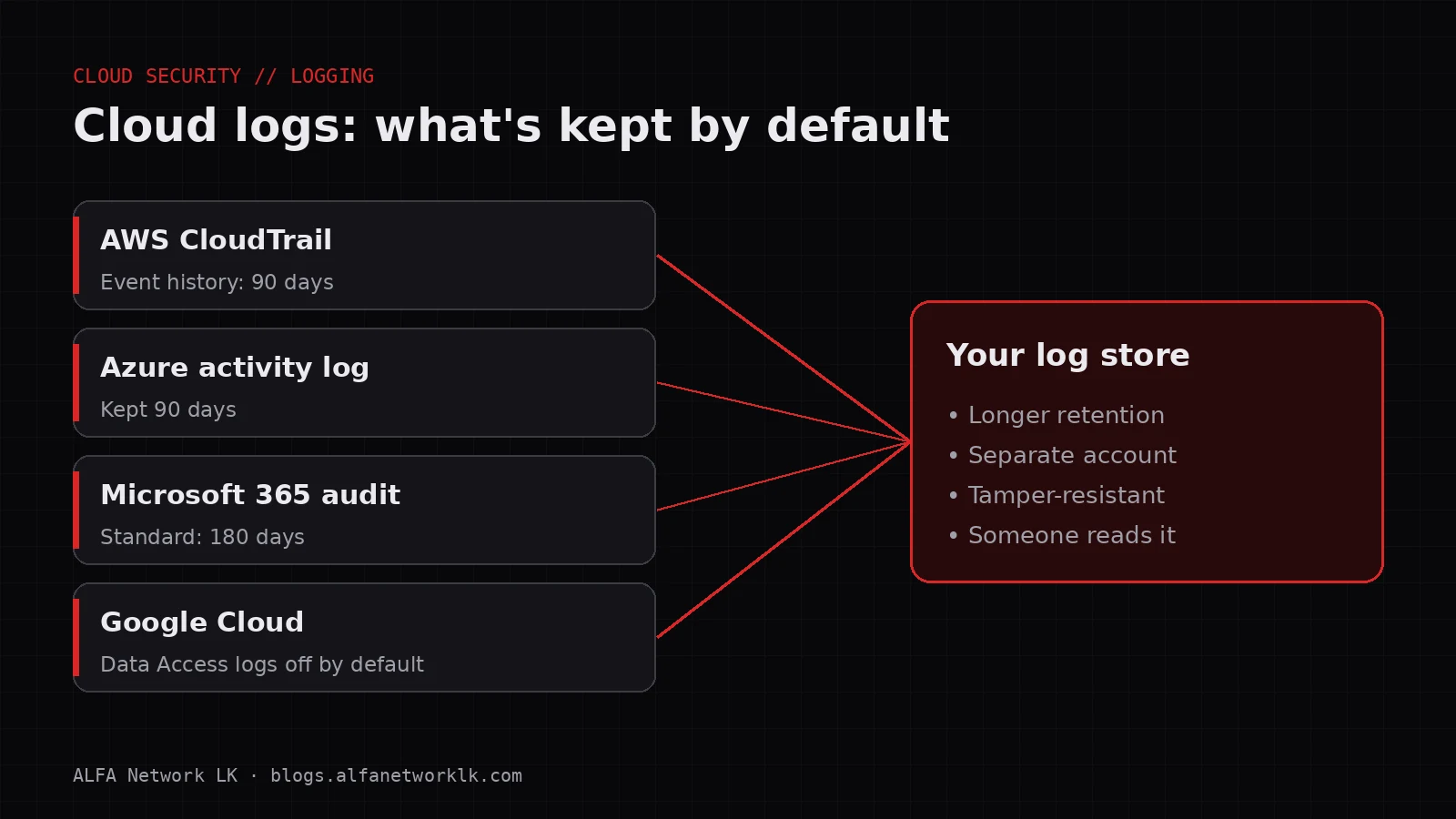
AWS, Azure and Microsoft 365 keep activity logs for months, not years, and some Google Cloud logs are off by default. What to enable now, and a simple first-hour plan for a cloud incident.
When something goes wrong in a company's cloud account, the first useful question is "what happened, and when?" The honest answer is often "we can't tell". Not because the cloud didn't record anything, but because the records were only kept for a few weeks, or the most useful logs were never turned on, or nobody knew where to look.
This post covers the logs worth switching on now, how long the main clouds keep them by default, and a simple plan for the first hour of a cloud incident. It's written for companies without a security team. If you only do the first section, you'll already be ahead of most.
Default retention: shorter than you think
These numbers come straight from each provider's documentation. Check them against your own plan, because they do change.
- AWS CloudTrail event history gives you a searchable record of the past 90 days of management events in each AWS Region, for free. Management events cover actions like creating users, changing permissions or deleting servers. After 90 days they're gone unless you've created a trail that saves them to S3.
- Azure activity log keeps events for 90 days and then deletes them. For longer retention, Microsoft says to create a diagnostic setting that sends the entries somewhere else.
- Microsoft Purview audit (Microsoft 365): according to Microsoft's audit log retention documentation, records are kept for 180 days by default under Audit (Standard). Longer default retention for some services depends on having E5-level licensing. Note that the Standard default used to be 90 days, so older guides may be out of date.
- Google Cloud audit logs: Admin Activity logs are always on. But Google's documentation says Data Access audit logs are disabled by default for almost all services. Data Access logs are the ones that tell you who read or downloaded data, and they're the ones you'll want after a leak.
The pattern is the same everywhere. Some activity is recorded automatically, but not all of it, and not for long. Incidents are often noticed weeks or months after they start, so a 90-day window can close before anyone goes looking.
What to switch on this week
AWS
- Create an organisation trail (or at least a trail in each account) that records management events in all Regions and saves them to an S3 bucket.
- Make that bucket hard to tamper with. Put it in a separate account if you can, block public access, enable versioning, and restrict who can delete objects.
- Turn on Amazon GuardDuty. It analyses CloudTrail management events, VPC flow logs and DNS logs as soon as you enable it, without extra setup, and raises findings for things like unusual API calls or instances talking to known bad addresses.
Azure
- Add a diagnostic setting on the subscription to send the activity log to a Log Analytics workspace or a storage account with the retention you want.
- Do the same for Microsoft Entra ID sign-in and audit logs. These show who signed in, from where, and what changed in your directory.
- Turn on Microsoft Defender for Cloud's free tier for recommendations, and consider the paid plans for the resources that matter most.
Microsoft 365
- Confirm auditing is on and that the people who might need to investigate have permission to search the audit log.
- Know your retention period. If 180 days isn't enough for you, look at longer retention options or export the logs regularly.
Google Cloud and Google Workspace
- Enable Data Access audit logs for the services that hold sensitive data, such as Cloud Storage, BigQuery and Cloud SQL. These logs can be large, so start with the important projects.
- Set up a log sink that exports to a bucket with the retention you need.
- In Google Workspace, get familiar with the audit and investigation tool in the Admin console before you need it.
Everywhere
- Make sure log storage is separate from the systems it watches. An attacker with admin rights on a server shouldn't be able to delete the evidence.
- Write down where each log goes and who can read it. Keep that note somewhere outside the cloud account.
- Keep an eye on log costs. Storage is usually cheap, but very detailed logs on busy services can add up. Start with what matters most.
The NSA's Top Ten Cloud Security Mitigation Strategies has a whole item on managing cloud logs for threat hunting. It's a useful next read once the basics are in place.
The first hour of a cloud incident
Say GuardDuty raises a finding, a staff member reports a strange login prompt, or a customer tells you they received an invoice from your domain that you didn't send. What now?
NIST's updated incident response guidance, SP 800-61 Revision 3 (April 2025), ties incident response to the wider NIST Cybersecurity Framework 2.0. One theme that runs through it is that most of the work happens before an incident: knowing your systems, your logs and who does what. For a small company, here's a practical first hour that fits that thinking.
Minutes 0 to 15: confirm and contain the account.
- Work out which identity is involved: a user, an access key, a service account.
- Reset the password and revoke active sessions and refresh tokens. In Microsoft Entra ID and Google Workspace you can sign a user out of every session.
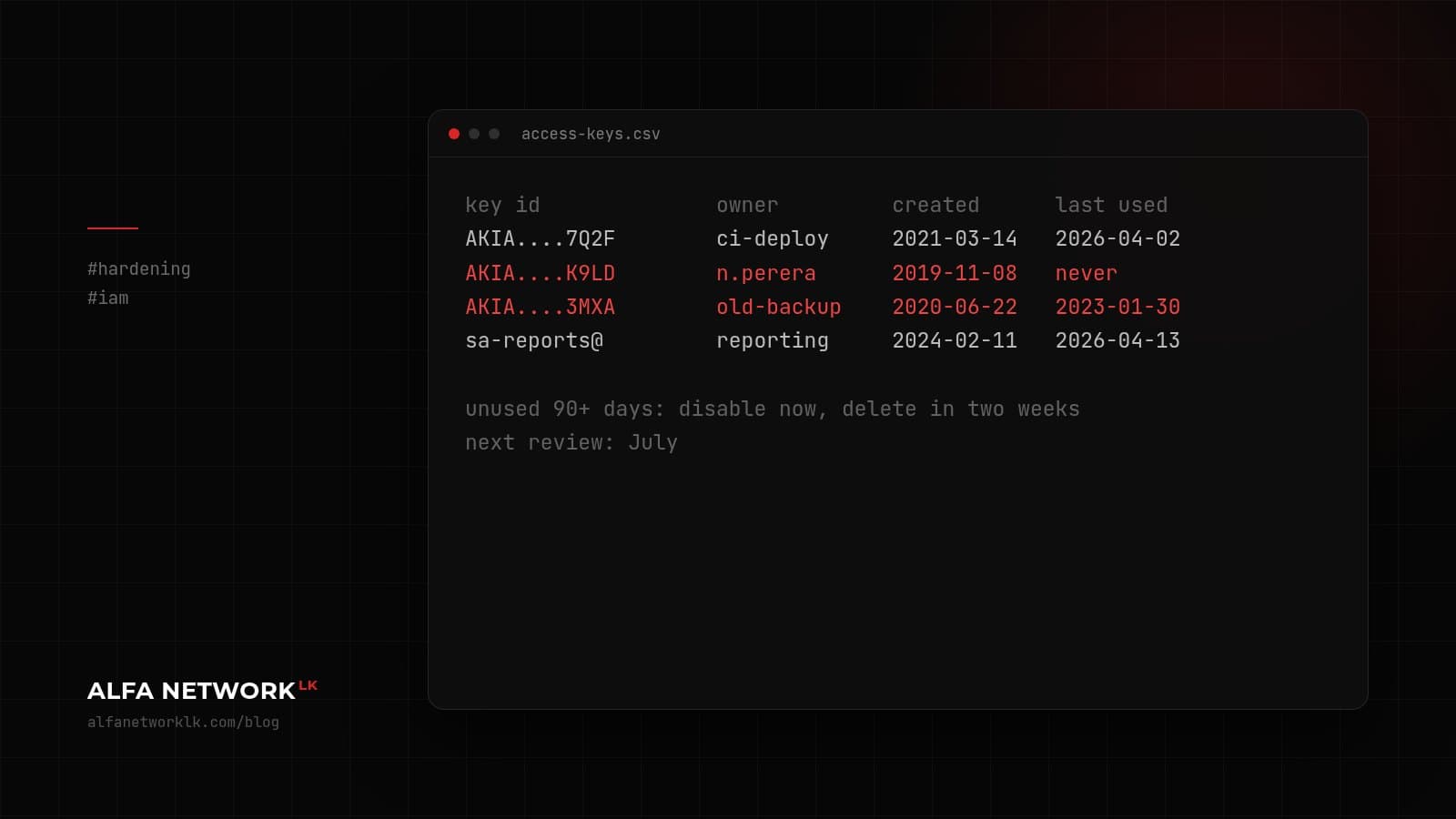
- Disable (don't delete) any suspicious access keys, and check for newly created users, keys or app registrations.
Minutes 15 to 40: preserve and look.
- Export the relevant logs now: CloudTrail events, Azure activity and sign-in logs, the Microsoft 365 audit log, Google audit logs. Save copies outside the affected account.
- Look for the usual signs. New inbox rules that forward or delete mail, new admin role assignments, new access keys, resources in Regions you don't use, unusual downloads, MFA methods added to an account.
- Write down everything you do, with times. Notes made during an incident are worth far more than notes rebuilt from memory later.
Minutes 40 to 60: widen the circle.
- Tell the people who need to know: management, your IT provider, and your bank if payments might be affected.
- If personal data may have been exposed, think about your obligations under Sri Lanka's Personal Data Protection Act, No. 9 of 2022, and get advice early rather than late.
- Decide whether you need outside help. It's much easier to bring someone in when the logs are still intact.
I've written a longer walkthrough for a related situation, the first 60 minutes of a suspected account takeover. Much of it applies to cloud incidents too.
A short checklist
- AWS: multi-Region trail saving to a protected S3 bucket; GuardDuty on
- Azure: activity log and Entra ID logs exported with longer retention
- Microsoft 365: audit search confirmed working; retention period known
- Google Cloud: Data Access logs on for sensitive services; logs exported
- Google Workspace: admins know where the audit and investigation tool is
- Log storage separated from day-to-day admin accounts
- A one-page incident plan with names and phone numbers, kept offline
- One practice run of the first hour, using a made-up scenario
Logs don't stop an attack. They decide whether you can answer "what happened?" with facts or with guesses, and that affects every decision that follows: what to tell customers, what to fix, and whether it's really over.
If you'd like help setting up cloud logging or practising an incident, ALFA Network LK can help.
Sources
- AWS, Working with CloudTrail event history
- AWS, What is Amazon GuardDuty?
- Microsoft, Azure activity log
- Microsoft, Manage audit log retention policies
- Microsoft, Search the audit log
- Google Cloud, Enable Data Access audit logs
- Google Workspace Admin Help, audit and investigation tool
- NIST, SP 800-61 Rev. 3: Incident Response Recommendations and Considerations for Cybersecurity Risk Management (April 2025)
- NSA, Top Ten Cloud Security Mitigation Strategies (March 2024)
- Data Protection Authority of Sri Lanka, Personal Data Protection Act No. 9 of 2022
Cover diagram: ALFA Network LK
Comments (0)
No public comments yet.